Free for iPhone and iPad
See what’s being said.
Nearby speech becomes large, live text.
A little more connection. One conversation at a time.
No accounts. No ads. No subscriptions.
Shall we sit
by the window?
Illustration only · no microphone access
Words you can read
Large live text, with adjustable size and light or dark appearance.
Speech is processed on your device
On-device recognition when available for your device and language.
Simple by design
Start, Pause and Clear. No accounts, ads or subscriptions.
How it works
A few taps. A clearer conversation.
Keep the device close
Open Seeing is Hearing on your iPhone or iPad and place it near the person speaking.
Tap Start
Allow microphone access and, if asked, Speech Recognition. Wait for Listening.
Read along
Words appear as people speak. Pause stops listening and keeps the words. Clear removes the text.
One person speaking at a time and less background noise can help. Words may change as recognition improves, so check important details with the speaker.
Inside the app
Made for the words you might miss.
Choose the text size and appearance that feel comfortable to read.
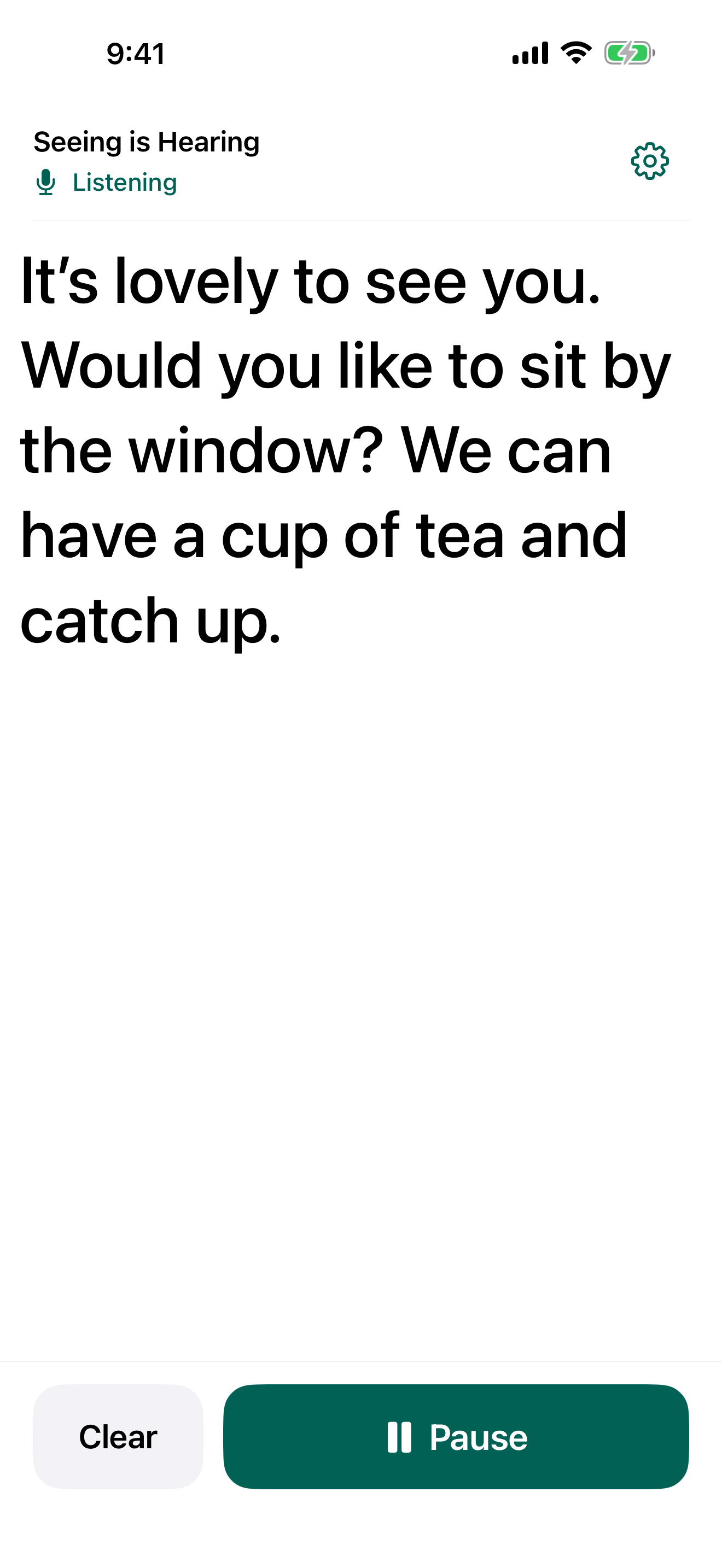
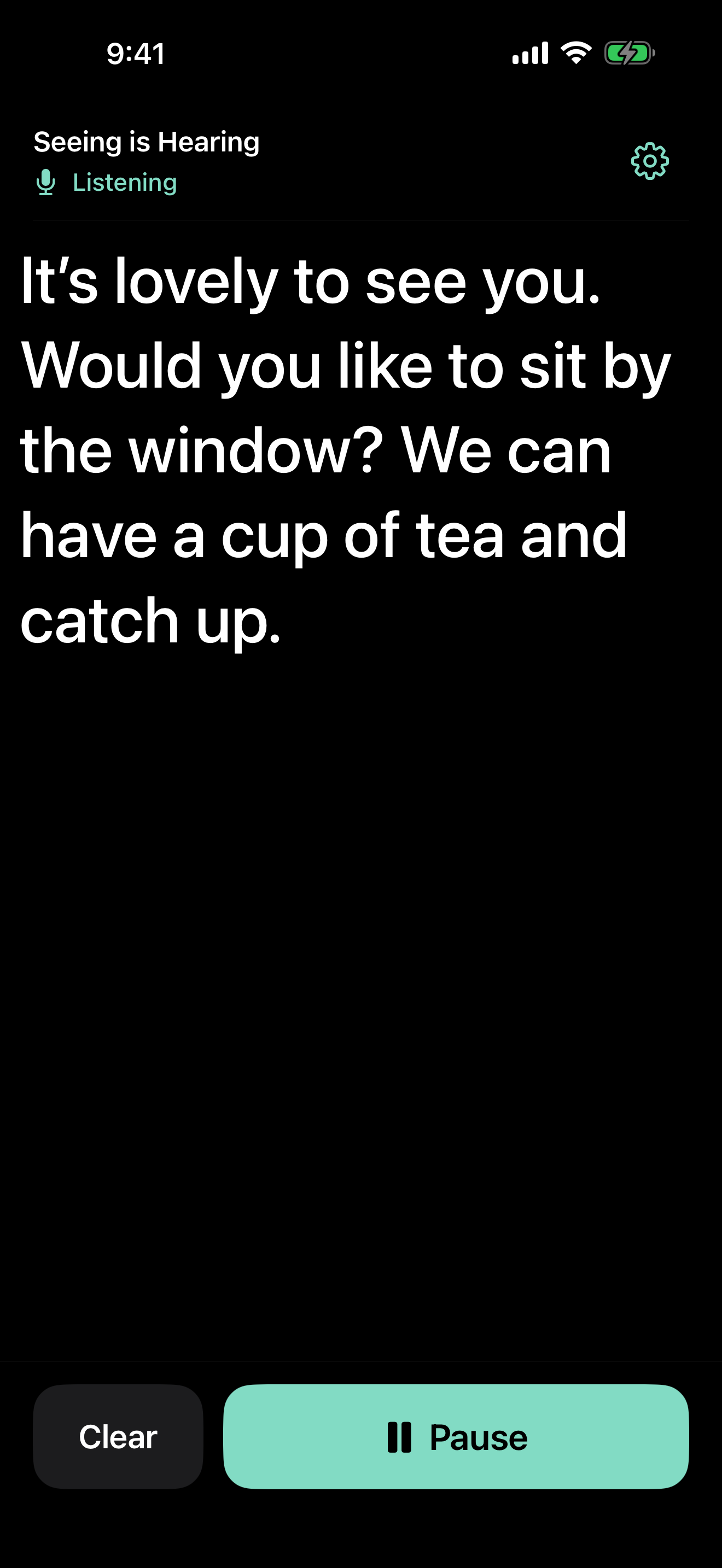
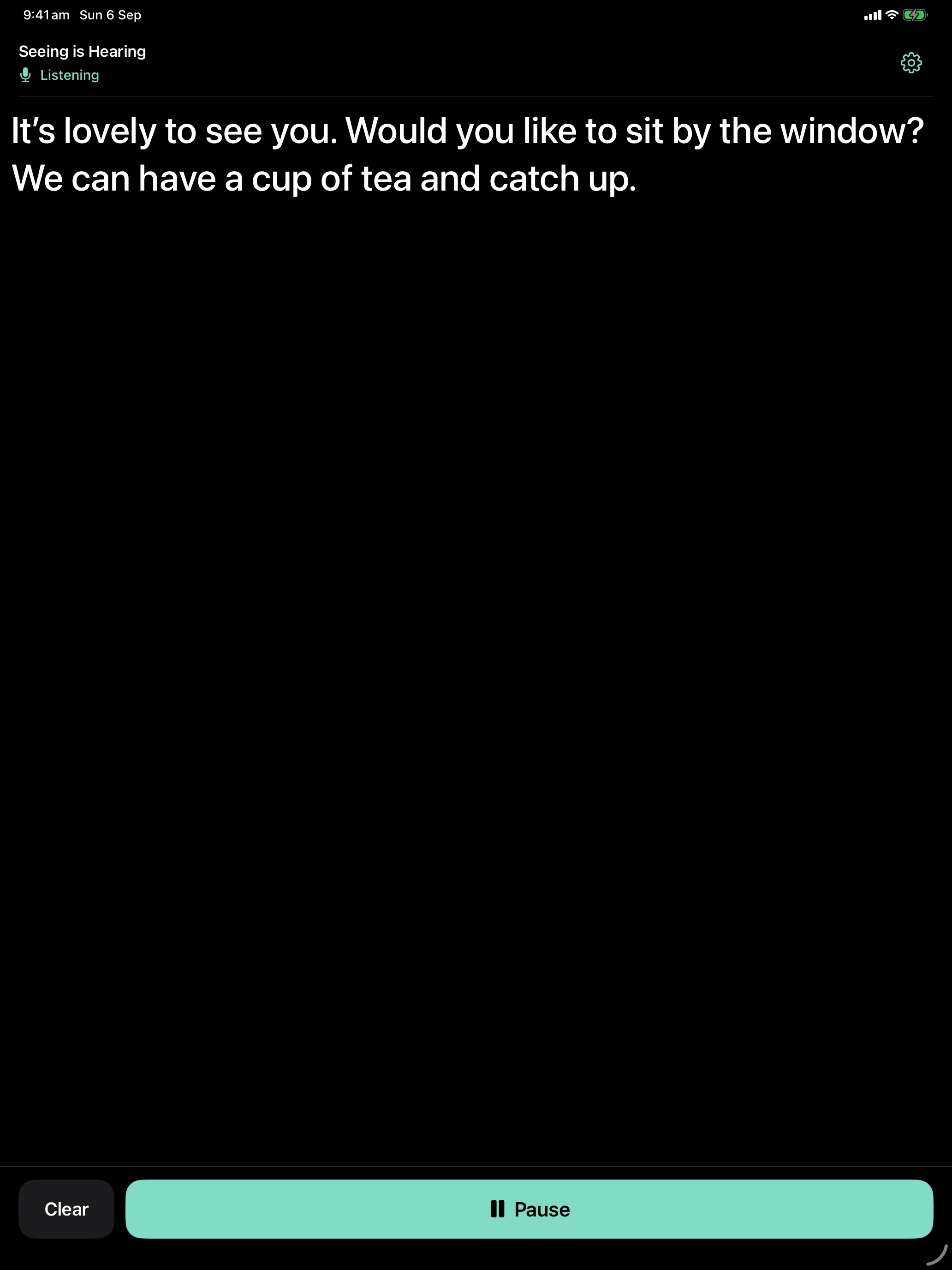
Screenshots from the released App Store app. Conversation text shown is a sample.
Frequently asked questions
A little help, when you need it.
Start here for reading preferences, permissions and privacy.
How can I make the text easier to read?
In the app’s Settings, choose a text size and System, Light or Dark appearance. Captions also follow your device’s larger text setting.
Keep screen awake prevents the screen from sleeping while listening. It uses more battery.
Why aren’t any words appearing?
Check that the status says Listening, move the iPhone or iPad closer to the speaker, and finish any other call or recording before trying again.
If the app offers Open Settings, use it to allow microphone or speech recognition access. Return to the app and tap Start. If on-device recognition is unavailable, follow the explanation on screen.
Do I need the internet?
No, provided Apple’s on-device speech recognition is available for your device and current language. Availability depends on your device, system version and installed speech resources.
If local recognition is unavailable, the app explains the problem. It does not download speech models or switch to online transcription.
Which devices and languages can I use?
The public app is for iPhone and iPad running iOS or iPadOS 17 or later.
It uses your device’s current preferred language when Apple’s on-device recognition is available for it. Availability varies by device and installed language resources. The app does not translate conversations.
Why did listening stop?
Opening the app’s Settings or leaving the app pauses listening. Calls, recording sessions or audio changes can also interrupt it. Returning does not restart the microphone automatically; tap Start when you’re ready.
Clear removes the current text. If you are already listening, new captions can continue to appear. Use Pause to stop listening.
Are my conversations saved?
No. Speech is recognised on your device, with no audio recordings or saved transcript history. Current text stays in temporary memory and is not restored after the app closes completely.
You can select and copy text. Your device and the place you paste it control that copy. Clear does not erase copied text, screenshots or anything you send elsewhere. Read the privacy policy for details.
Does this replace a hearing aid?
No. Seeing is Hearing is a visual aid for conversations. Speech recognition can miss or misinterpret words. It does not assess hearing or provide medical advice, and it is not an emergency communication tool.
The public version, 1.0.1, displays captions and does not amplify sound.
For existing TestFlight testers
What’s being tested.
Version 1.1 is being tested privately. These additional features are not included in the public App Store version, 1.0.1. The iPhone and iPad instructions below describe build 17; check your version in TestFlight.
How do I read captions on another device?
Open Connect devices on both devices. Choose Use as microphone on the iPhone or iPad near the speaker and Read captions on the other. Select the microphone’s name on the reader, then confirm the matching number on both screens.
One microphone connects to one reader at a time. Keep both apps open, allow Local Network access, and leave Wi-Fi and Bluetooth enabled. The local connection does not need internet access.
Either device can Start, Pause and Clear. Leaving either app closes the connection. Connect again and tap Start to resume.
How does headphone listening work?
Headphone listening is optional; captions work without it. Connect compatible headphones or a hearing device directly to the microphone iPhone or iPad. In the version 1.1 beta, tap the headphones icon at the top, just left of Connect devices. Turn on Listen through headphones, then tap Done and Start.
The paired reader receives captions only. Mute silences headphone sound while captions continue; Pause stops both. Use the microphone device’s volume controls and begin at a comfortable low volume. Compatibility and delay depend on the accessory and its iOS connection.
Opening headphone setup does not itself pause an active conversation. Changing the listening switch does, and requires Start again.
Can I see the tutorial again?
Open Settings and choose Tutorial. In the version 1.1 beta, tap Start on the practice screen and speak: your own words appear using this device’s microphone.
Pause keeps the words and Clear removes them. Leaving the practice page stops listening and discards its text. Practice words are separate from your main conversation and are not shared with a connected reader.
What about Apple TV and Apple Watch?
The Apple TV caption reader is in private testing. It needs a compatible version 1.1 iPhone or iPad as the microphone. On the TV, choose Connect, find the microphone device and confirm the matching number on both screens. The simplest setup keeps both devices on the same local network.
Apple TV displays the resulting captions. It does not listen to the room, transcribe television programmes, play the phone’s microphone audio or put captions over other apps.
Apple Watch support is on hold and is not included in the current TestFlight or public App Store version. Version 1.1 build 17 uses the microphone on your iPhone or iPad. Keep that app open while listening, and connect headphones to that device if you want sound as well as captions.
Print & share
Pass it on.
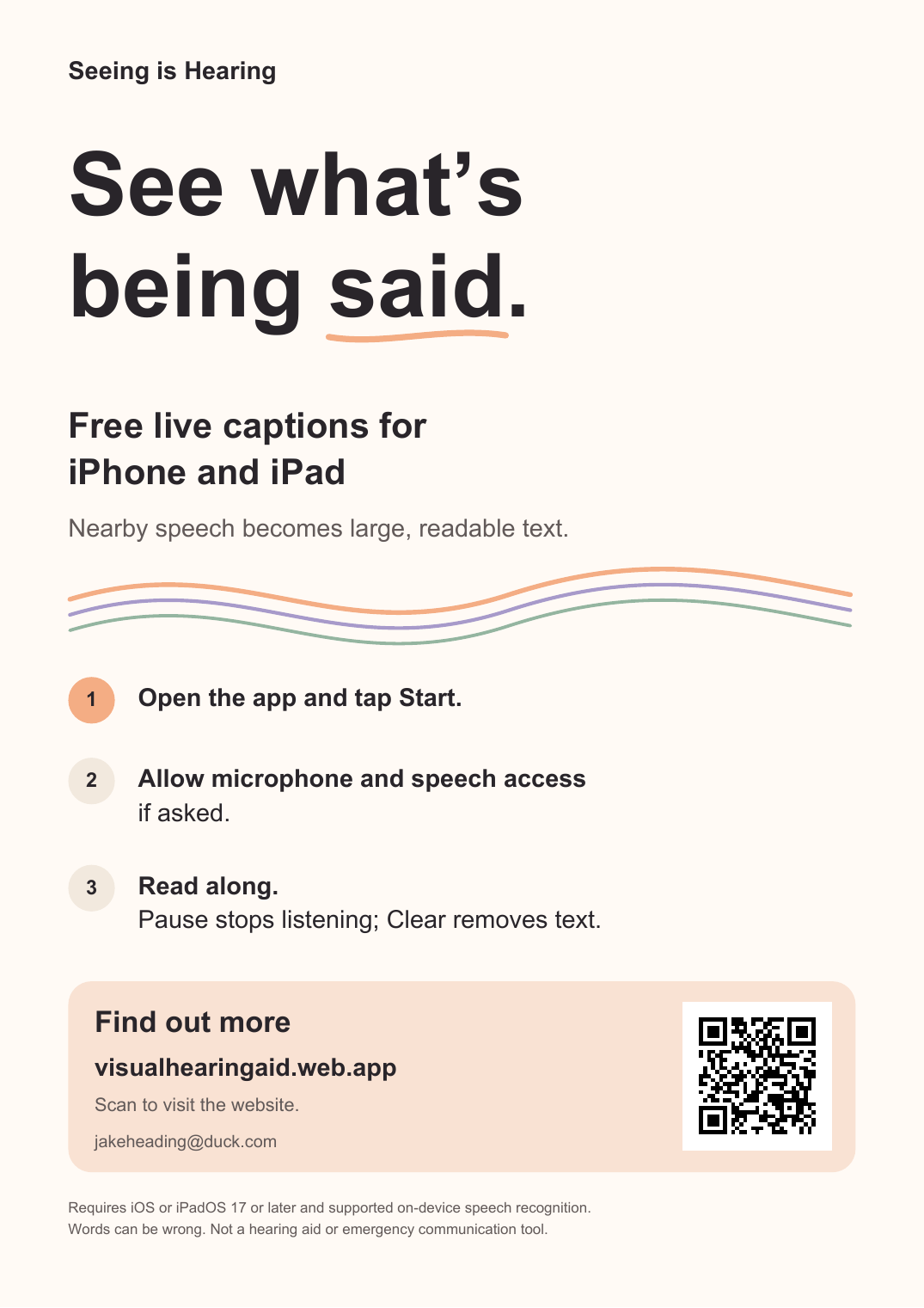
Know someone who might find this useful? Print a flyer to share with a friend, family member or community group.
Each flyer includes this website’s address and a QR code, so the next step is easy to find.
About Seeing is Hearing
One conversation at a time.
I’m Jake Heading. I made Seeing is Hearing after someone close to me began finding conversations harder to follow. As a primary school teacher, I’ve also worked with students with hearing loss.
I wanted to make a simple way to see the words you might miss. My hope is that it helps more people feel included, one conversation at a time.
Questions, feedback or an idea?
Contact Jake.
Have a question, found a problem or have an idea for the app? Email me at jakeheading@duck.com.
For a problem, include your device model, app version and what happened. Only include conversation text if you choose to share it.